Online Check-in - How to connect to SIBA
Holidu helps you collect guest information automatically and send it to the SIBA portal (Sistema de Informação de Boletins de Alojamento), supporting you in meeting Portugal's local registration requirements. This comprehensive guide walks you through connecting your property to SIBA and integrating it with Holidu.
Important Note: Holidu assists with the collection and transfer of guest data, but legal compliance remains your responsibility as the host. For full legal information, please consult the official SIBA portal.
1. Before You Start - What are the prerequisites?
Before activating the guest registration feature with Holidu, ensure you have the following in place:
- A property already registered on the official SIBA portal: https://siba.ssi.gov.pt
- Your SIBA credentials available:
- NIF of the Hotel Unit
- Establishment Code
- Authentication Key (usually a 12-digit password)
The credentials should be the same ones you use to access the official SIBA Portal.
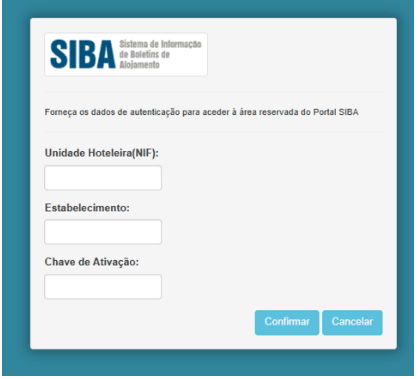
Submission method: Know which bulletin submission method (Método de envio) is active in your SIBA portal account. Both "SEF-SIBA web service integration" and "SEF-SIBA Página no portal integration" can be connected to Holidu. The method you select in the Holidu app must match the one configured in SIBA.
To check your current submission method:
- Log in to your SEF account at https://siba.ssi.gov.pt/s/an/default.aspx
- If you need to change the submission method and cannot do it yourself, contact SIBA directly at https://siba.ssi.gov.pt/contactos
2. How to configure the Guest Online registration between Holidu and SIBA
Follow these steps to connect your property to SIBA:
Step 1: Access Online Check-in Settings
In your Holidu app, navigate to Tools in the left-side menu and then click on Online Check-in.

Step 2: Select Your Property
You will see a list of your properties. Click "Configure" next to the property you want to connect.
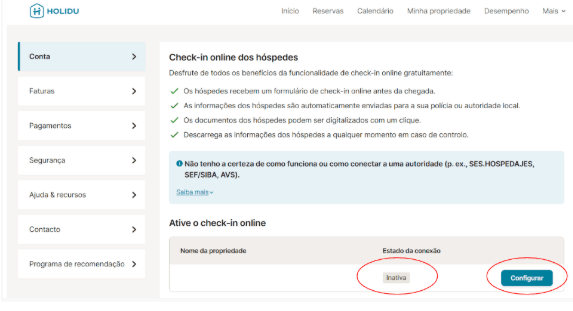
Step 3: Fill in Your Information
Fill in the form with your information and credentials from the SIBA Portal. Enable "Send data automatically to the responsible authority".

Step 4: Select Your Sending Method
For Portugal, there are two possible connection methods, and each one requires different fields:
- SEF-SIBA web service integration (see Option A below)
- SEF-SIBA Página no portal integration (see Option B below)
Important: Always choose the option that matches the sending method (Método de envio) currently configured in your SIBA account. If the two do not match, validation and data transfer will fail.

Option A – "SEF-SIBA web service integration"
Use the same credentials that you use to access the SIBA portal at https://siba.ssi.gov.pt/S/FB.aspx?ReturnUrl=%2fS%2fau%2fDefault.aspx
The required login fields are:
| Field in the Holidu app | SEF/SIBA portal field |
|---|---|
| Username | Unidade Hoteleira (NIF of the hotel unit) |
| Password | Chave de Ativação (activation key) |
| Establishment number | Estabelecimento (establishment code) |
For the remaining fields — postal code, postal area, contact name, email and phone number — enter exactly the same information that appears in your SIBA account under "Atualização dos dados de inscrição": https://siba.ssi.gov.pt/S/au/DadosIdentificacaoActualizacao.aspx
On the same SIBA page, the "Método de envio" must be set to "Web Service" for this option to work. If it is set to something else, follow the steps in "How to switch between the two methods" below.
Option B – "SEF-SIBA Página no portal integration"
Use the same credentials that you use to access the SIBA portal at https://siba.ssi.gov.pt/S/FB.aspx?ReturnUrl=%2fS%2fau%2fDefault.aspx
The required fields are:
| Field in the Holidu app | SEF/SIBA portal field |
|---|---|
| Username | Unidade Hoteleira (NIF) |
| Password | Chave de Ativação (activation key) |
| Establishment number | Estabelecimento (establishment code) |
No address or contact details (postal code, postal area, contact name, email, phone number) are needed for this option — only the three fields above are required.
Only select "Página no portal" if this is the sending method configured in your SIBA account settings. You can verify it in the SIBA portal under "Atualização dos dados de inscrição".
How to switch between the two methods
The sending method selected in the Holidu app must always match the "Método de envio" in your SIBA account. Changing it in Holidu alone is not enough — the change must be requested from SIBA.
- Check the current method in the SIBA portal under "Atualização dos dados de inscrição": https://siba.ssi.gov.pt/S/au/DadosIdentificacaoActualizacao.aspx
- If it is not the method you want, collect your NIF / Tax Identification Number (your company or host tax number) and the establishment number(s) of every property that needs to be changed
- Send an email to siba@ssi.gov.pt requesting the change of submission method (for example, to Web Service)
- Wait for SIBA's confirmation that the change has been processed
- Once confirmed, return to the configuration form in your Holidu app, select the matching sending method, complete the required fields for that option and validate again
- Click "Validate", and once it shows "Completed!", click "Save Changes"
- Once it's completed, you will see that the connection is active

3. What happens after the activation
After you successfully activate the SIBA connection, future bookings will automatically be associated with a check-in form. Specifically, bookings with a check-in date at least 6 days after the configuration is completed will be linked to the form.
The form is sent to guests by email or via message on their booking platform.
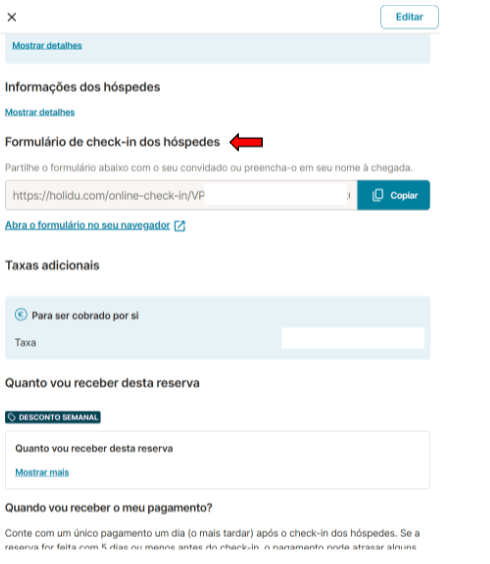
4. Guest's point of view
After booking a property, guests receive a form link via email or through their booking platform message. Here's what they experience:
Receiving the Form
Guests receive the check-in form link immediately after booking. They can access it anytime before their check-in date.
Filling Out Information
Guests must fill out the details for all guests, including children. They have two options:
- Manual entry: Type in the guest information directly
- Scan ID documents: Upload or scan their ID documents for faster completion


Reminders and Deadlines
The system automatically handles reminders:
- Data is stored when guests complete the form
- If guests don't fill it out, automatic reminders are sent 5 days prior to the check-in date
- If still incomplete by check-in day, you (the host) can collect the information manually using the same link
- After 11:00 PM on the check-in date, the complete data is automatically sent to the SIBA portal
5. Form Statuses
As a host, you will see various form statuses in each booking page of your Holidu app. Understanding these statuses helps you manage guest registrations effectively:
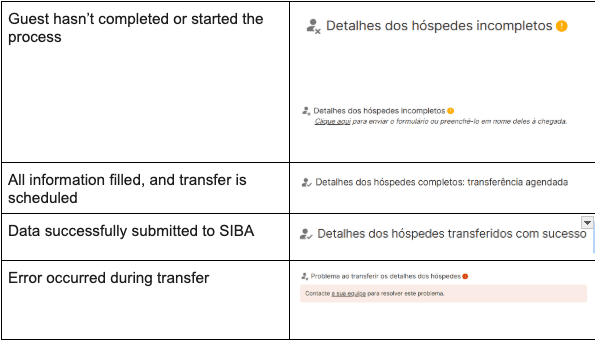
Common Form Statuses
- Pending: The form has been sent to the guest but not yet completed
- Completed: The guest has filled in all required information and the form is ready for transfer
- Transfer Error: There was an issue sending the data to SIBA. See troubleshooting steps below
- Transferred: The data has been successfully sent to the SIBA portal
How to fix incomplete or error data
For incomplete forms:
- Resend the form link to the guest as a reminder
- Contact the guest directly to encourage completion before the check-in date
- If necessary, complete the form yourself on check-in day
For transfer errors:
- Contact Holidu Support at host@holidu.com
- Confirm that the sending method selected in the Holidu app matches the submission method (Método de envio) configured in SIBA — either "SEF-SIBA web service integration" or "SEF-SIBA Página no portal integration"
- Verify that all required fields were filled in correctly according to your SIBA account settings
6. How to get the guest registration form - Boletim de alojamento
You can download the guest registration form (Boletim de alojamento) for any period. This is useful for manual records or historical reference:
- Log in to Holidu and go to More > Account > Guest Online Registration
- Click Configure, then open Details > Documents
- Select "Generate Guest Form", choose the period you need, and click Download
Do you want to contact us?
We’re here to help. You can contact us directly if you need assistance or have questions.
Contact us